


AI Photo Lab: Generate & Edit
3.79.00 Reviews
App Specs
- Version
- 1.0.3
- Updated On
- License
- Free
- Downloads
- 1,000,000+
- Developer
- BaseGroup
- Categories
- Photography
- Platform
- Android
Screenshots
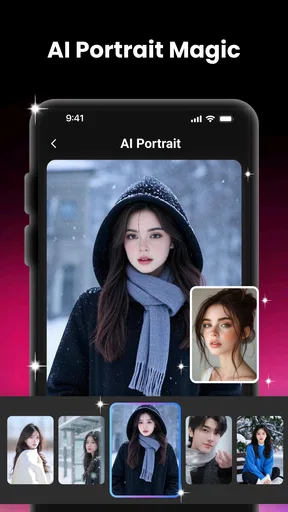
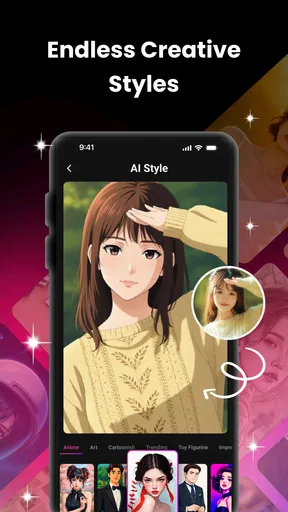
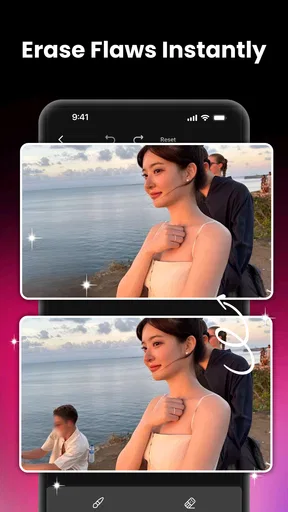
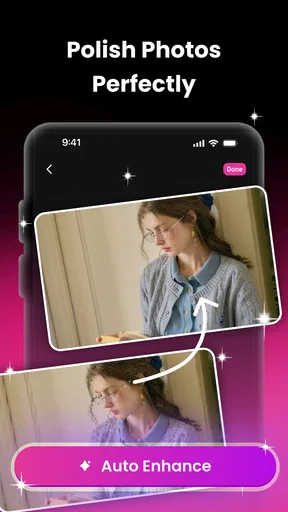
 Analysis by AppCompare
When I want to turn an ordinary portrait into something more playful, I’m usually looking for a quick experiment rather than a full editing session. AI Photo Lab: Generate & Edit is aimed at that kind of moment: it’s a photography app from BaseGroup for creating AI portraits and changing photos with AI-assisted effects. I’d treat it as a creative side tool, not a replacement for a careful desktop editor. Its appeal is the chance to try a different look without needing to know a complicated editing workflow.
From a familiar photo to a finished image
I’d treat the finished image as a candidate, not an automatic keeper: compare it with the untouched photo, then view it at the size and crop you plan to share. That last check can reveal whether the new look still suits the person and moment, and it makes the handoff from editing to posting more deliberate.
Choosing a starting point
A useful way to approach the app is to begin with a photo that already has a clear subject. For a portrait, good light and an unobstructed face give an AI effect less visual clutter to work around. I’d keep an untouched copy of the original in my camera roll before trying a dramatic change; that gives me a straightforward fallback if the result looks too artificial or simply doesn’t suit the moment.
That small preparation matters because AI edits can change the mood of a picture more than a conventional brightness or color adjustment. If I’m editing a casual selfie for a private chat, I may be happy to experiment freely. If it’s a photo I want to use for a work profile or a family keepsake, I’d start with a restrained treatment and check that the image still looks like the person I meant to show.
Trying the creative tools
The app’s central idea is easy to grasp: use AI to give portraits and other photos a more transformed look, then make ordinary edits if the image needs finishing. I like that combination in principle. A generated effect can provide the striking change, while basic adjustments can help the final picture feel less like a preset and more like something I chose deliberately.
When testing a strong effect, I’d compare the result with the original before moving on. Look closely at the edges around hair, glasses, shoulders, and other details that can be difficult for an automated edit to handle cleanly. A result that looks convincing as a tiny preview may show odd transitions when opened larger. If that happens, I’d try a less ambitious treatment or choose a clearer source photo rather than stacking more edits on top.
There’s also a practical trade-off between novelty and likeness. An imaginative portrait can be fun for a social post or a joke among friends, but it may not work when accuracy matters. I’d use the app’s creative side for expressive images and keep a natural version ready for situations where a familiar, unaltered appearance is more useful.
Worth Reading Before You Choose

EA SPORTS FC Mobile 26 Is a Bigger Football Game, but It Takes Time

Flipboard Shows What News Apps Must Do Beyond the Feed

Switching to Android Auto Means Rethinking Your Driving Routine

Google Calendar Makes a Crowded Week Easier to Manage

Ludo King Makes the Most of the Minutes Between Plans

Baby Panda World Brings Quick Play to Modern Phones, but Its Game Library Feels Busy
Making the result fit its destination
Once I have an effect I like, I’d decide where the image is going before making final adjustments. A photo intended for a social feed can often handle stronger color and a more noticeable style. A picture meant for a profile, a family group chat, or a printed album usually benefits from a lighter touch. Thinking about the destination first keeps me from spending time polishing an edit that doesn’t fit how I’ll use it.
For a realistic everyday example, imagine I’ve taken a quick portrait at home before meeting friends. I could try an AI treatment to make the image more playful, compare it with the original, and then adjust the overall look so the face remains easy to recognize. If the result feels right, I can save it for sharing; if it doesn’t, I still have the original photo and can switch to a more conventional edit. That is a sensible, low-pressure way to explore creative tools without treating every generated result as a keeper.
Before sharing, I’d also check the crop and make sure no important detail has been pushed too close to the edge. A portrait can look balanced in an editor and then feel cramped in a square or vertical post. This final check is simple, but it often makes the difference between an image that looks intentionally composed and one that feels like an effect was applied without considering the frame.
Where it fits among photo editors
Compared with the usual phone photo editor, this app is more interesting when I want a noticeable AI-led transformation than when I only need to straighten a picture or correct exposure. The built-in editor on a phone is often the quicker choice for small fixes because it is already close at hand. A more advanced editing app is the better fit when I need precise control over masks, layers, or detailed retouching. This app sits between those approaches: it makes creative experimentation the point, while everyday adjustments help bring the result into shape.
That distinction helps set expectations. I wouldn’t choose it as my only tool for every photo, and I wouldn’t assume that an AI-generated look will be suitable for every use. I would reach for it when I want a portrait to feel different, when I’m making something casual for friends, or when I want to explore a visual idea before deciding whether it deserves more detailed work elsewhere.
What to check before committing to an edit
AI results can be sensitive to the source image, so I’d try a well-lit photo with a simple background first. If an effect struggles with a busy scene or an awkward angle, changing the input may help more than repeatedly applying the same treatment. I’d also save versions as I go when I’m comparing noticeably different looks; that makes it easier to choose based on the actual images rather than relying on memory.
A second useful habit is to judge the image at the size where it will be seen. Fine artifacts may be easy to miss while editing on a phone, whereas a face that looks overly smooth or a background edge that seems misplaced can become obvious when the photo is shared. For a casual post, a little imperfection may be acceptable. For an image I care about, I’d take the extra moment to inspect it and choose the more natural version if the effect distracts from the subject.
Who will enjoy it, and who may prefer another option
I think the app makes the most sense for someone who enjoys trying different looks but doesn’t want a technical editing routine. It can be a handy creative stop between taking a photo and deciding what to share, especially for portraits where a change in style is more interesting than a small correction. A beginner can approach it as an experiment: start with one image, compare the result with the original, and keep only the version that still feels right.
I’d steer away from it if your main goal is exact, repeatable control over every part of an image. Someone preparing a polished commercial portrait, restoring an important old photograph, or needing precise retouching will likely be better served by a tool built around detailed manual adjustments. The same goes for anyone who wants every picture to remain strictly natural. AI transformations are a creative choice, and sometimes the best edit is simply a small exposure correction—or no edit at all.
If you’re deciding whether it belongs in your routine, the practical question is what you expect to do most often. For quick, expressive portrait experiments, it has a clear role. For routine cropping and light correction, your phone’s standard editor may be enough. For meticulous work, a more comprehensive photo editor is a better match. I’d keep this one for the moments when I want to see an image take a less ordinary direction.
First impressions
As soon as I launched the app, I was greeted by a sleek and intuitive interface. It’s like the developers knew exactly what I wanted – simplicity with a touch of sophistication. The app didn't overwhelm me with a million options right off the bat, which is something I truly appreciate. Instead, it felt inviting, encouraging me to explore its features at my own pace.
The magic of AI editing
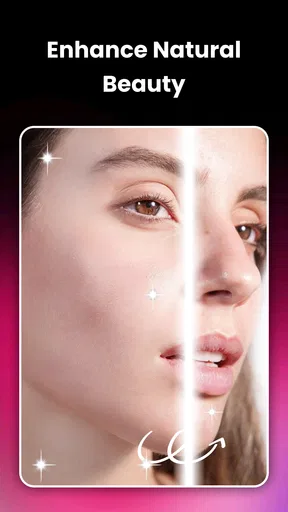
Now, onto the fun part – the AI editing features. This app is packed with a bunch of cool tools that let you transform your photos in ways you probably never imagined. The AI technology here is pretty impressive. It manages to keep things straightforward while delivering professional-looking edits. I played around with the "Magic Retouch" feature, and honestly, it felt like having a mini Photoshop right on my phone.
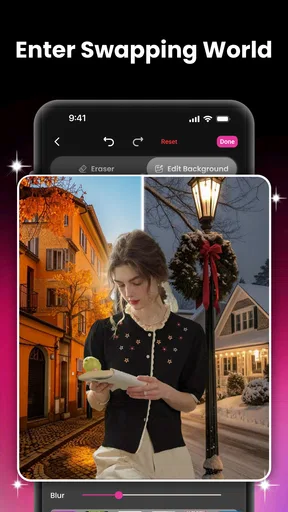
One of the standout features for me was the AI-generated backgrounds. You can literally make it look like you’re lounging on a beach in Bali or exploring the streets of Tokyo. The AI does a remarkable job of blending your photos seamlessly into these new settings. It's perfect for those days when you're stuck at home but craving a little adventure.
Editing made easy
Beyond the AI magic, the app offers a variety of traditional editing tools. Whether you’re looking to adjust the brightness, contrast, or add a cool filter, AI Photo Lab has got you covered. The filters are particularly notable, offering a range from subtle to bold, catering to every mood you might want to convey.
The app also includes a handy collage feature. I found it to be a breeze to compile a series of photos into one cohesive masterpiece. The drag-and-drop functionality is smooth, and you can easily switch between different layout options to find the perfect fit for your photos.
Sharing your creations
After editing, what's next? Sharing, of course! The app makes it super easy to share your creations directly to social media platforms. Whether it's Instagram, Facebook, or Twitter, you can instantly show off your edited photos to your friends and followers. Plus, there’s an option to save your photos in high resolution, which is a big plus if you’re a quality junkie like me.
For sharing, I’d still take a moment to inspect the saved image rather than assuming the on-screen preview tells the whole story. It’s worth checking that the crop, colors, and facial details remain pleasing at the size I intend to post. If I’m sending a picture privately, I may choose a more playful version; for a profile image, I’d favor one that still looks recognizably like me.
What’s the catch?
While AI Photo Lab offers a lot of features for free, there are some premium options that require a subscription. This isn't unusual for apps these days, but it’s something to keep in mind if you’re considering making the most out of all its offerings. That said, the free version is generous, and you can definitely have a lot of fun without spending a dime.
I’d begin with the free experience and decide whether the tools I actually use justify anything beyond it. That keeps the decision grounded in my own routine rather than in the promise of trying every possible effect. The app is free to download, and its Everyone age rating makes it broadly suitable in terms of its stated content classification; that doesn’t mean every edited picture will suit every audience, so I’d still use my judgment before sharing.
Another thing worth mentioning is that the app occasionally pushes notifications about new features or promotions. While this might be slightly annoying for some, I found them to be informative rather than intrusive. Plus, they’re easy to manage if you prefer a more silent experience.
Availability and everyday fit
BaseGroup’s photography app is currently at version 1.0.1 and requires Android 7.0 or later. It has reached over one million installs, while its average rating is 0.0, so I wouldn’t use that rating figure as a shortcut for judging how well it will suit my own editing habits. I’d focus instead on whether I want its particular mix of portrait effects and straightforward photo tools.
For me, the main question is not whether an AI edit can make a picture more dramatic; it’s whether that drama helps the image. I’d keep the untouched photo, try one effect at a time, and stop when the result feels intentional. That approach makes it easier to enjoy the creative side without losing track of the original moment or ending up with a picture that looks more processed than I wanted.
Final thoughts
Overall, AI Photo Lab: Generate & Edit is a solid choice for anyone looking to enhance their photos with ease and creativity. The app combines powerful AI tools with a user-friendly interface, making it accessible to both beginners and seasoned photo editors. It’s an app that brings a lot of joy and creativity to the table, and I’m glad I gave it a try. So, if you're ready to take your photo editing game to the next level, this app is definitely worth a download.
With its blend of practicality and fun, AI Photo Lab has found a permanent spot on my phone. I’m excited to see what future updates will bring, and I highly recommend giving it a go if you haven’t already!
Pros
- User-friendly interface for easy navigation.
- Wide variety of editing tools available.
- Fast processing of images and edits.
- High-quality output for professional results.
- Regular updates with new features.
Cons
- Limited free features
- many require purchase.
- Occasional crashes on older devices.
- Heavy on battery usage during editing.
- Ads can be intrusive in the free version.
- Requires strong internet for smooth performance.
FAQs for AI Photo Lab: Generate & Edit
What features does AI Photo Lab offer for photo editing?
AI Photo Lab provides a comprehensive suite of tools for photo editing, including AI-driven enhancements, filters, and effects. Users can retouch images, remove backgrounds, and apply artistic styles. The app also offers features like face retouching and color correction to ensure your photos look professional and polished.
Is AI Photo Lab suitable for beginners in photo editing?
Absolutely! AI Photo Lab is designed with an intuitive interface that makes it easy for beginners to navigate. The AI-driven tools simplify complex editing tasks, allowing users with no prior experience to achieve stunning results. The app also offers tutorials and tips to help new users get started quickly.
Does AI Photo Lab require an internet connection to function?
Some features of AI Photo Lab, especially those using AI algorithms, may require an internet connection to process images on cloud servers. However, many basic editing tools are available offline. It's recommended to have a stable internet connection to fully utilize all features and receive updates.
Are there any in-app purchases or subscription fees in AI Photo Lab?
AI Photo Lab offers both free and premium versions. While the free version includes basic tools and features, the premium version unlocks advanced features like exclusive filters and effects. Subscription fees may apply for premium access, and users can choose from monthly or annual plans based on their needs.
How does AI Photo Lab ensure user privacy and data security?
AI Photo Lab is committed to user privacy and data security. The app follows industry-standard encryption to protect personal data and ensures that photos processed through the app are not stored or shared without user consent. A detailed privacy policy is available within the app for users to review.


